
Customize your writing space.
Four choices: the page behind your words, the font, the room, and the sound. Same paragraph in each, so you can see what changes.
1. The page behind the words
Bottom left, press Aa. The right column is Page: None, Clear, White, Ruled.

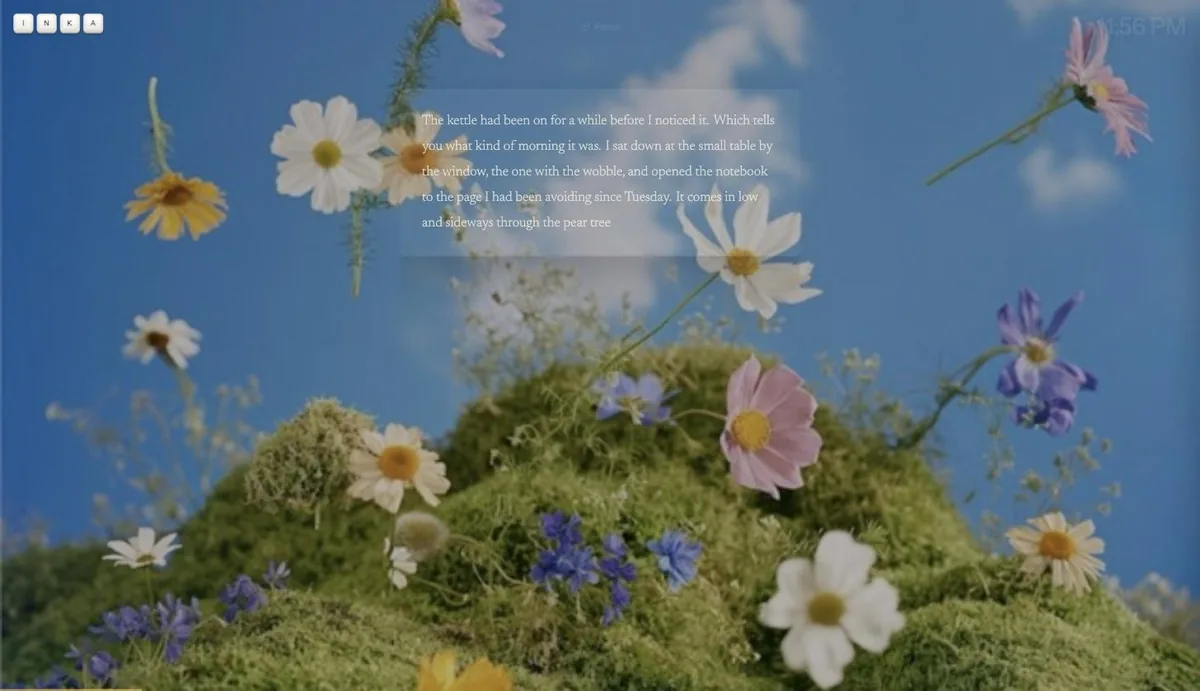
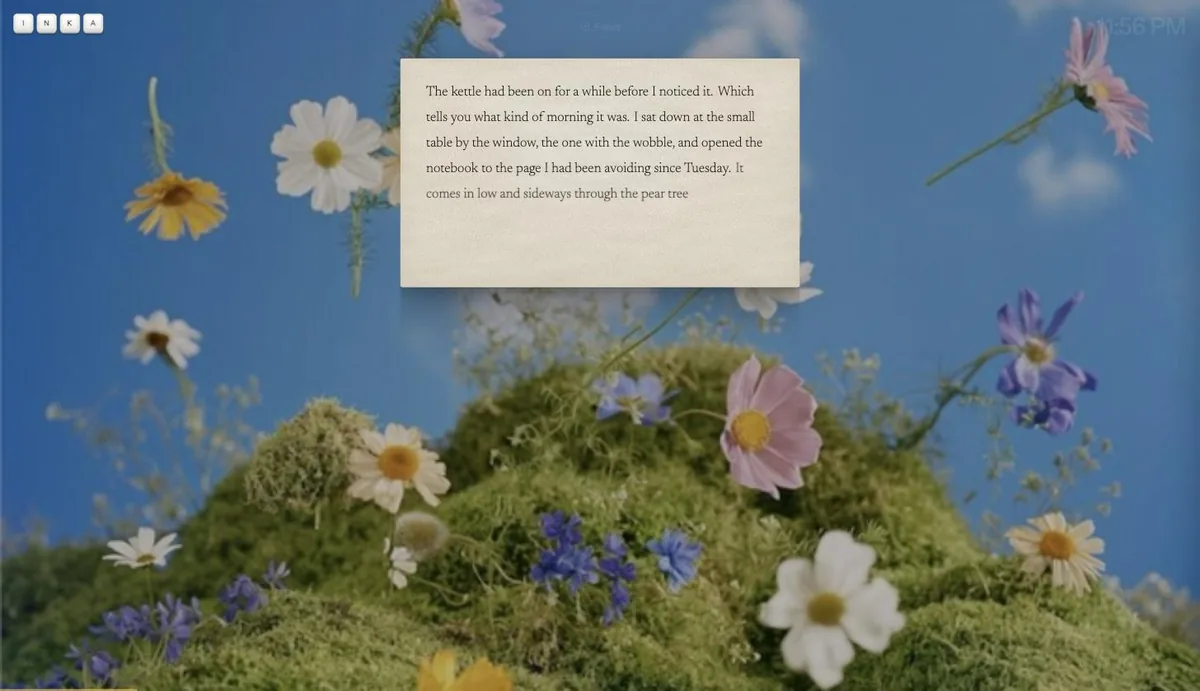
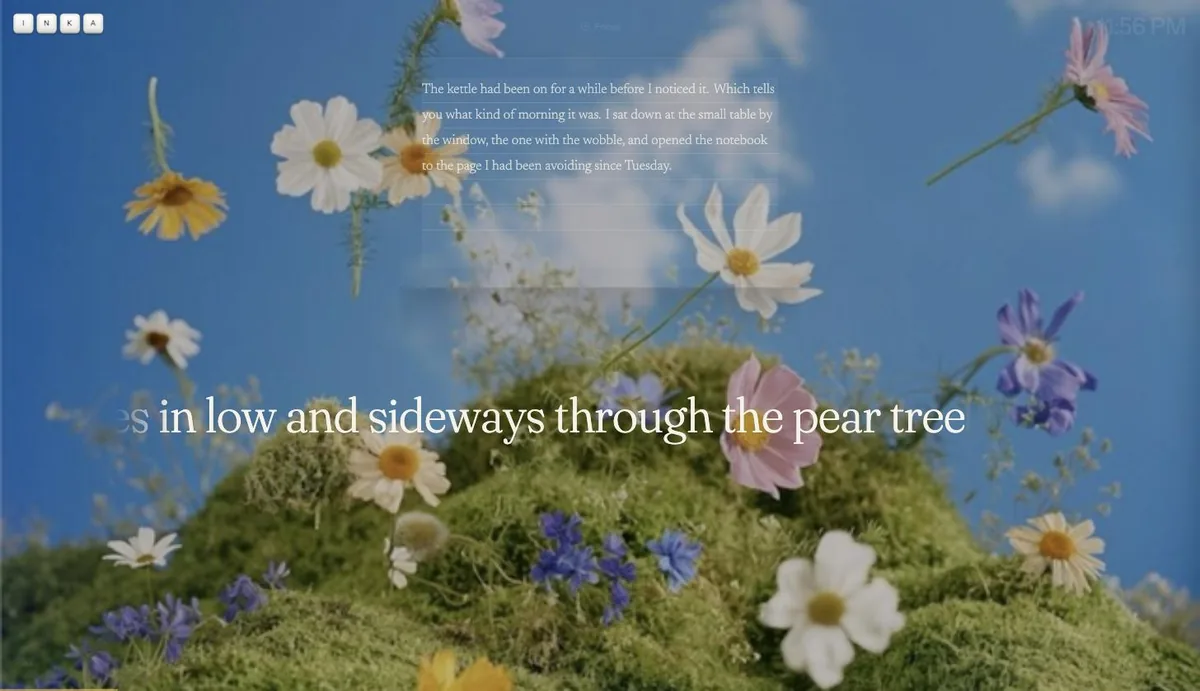
Whichever page you pick, you write straight on it by default. If you would rather type on the big line at the bottom and watch each sentence settle, switch How you write to On the line, in Text.
2. Font
Same Aa button, left column: Serif, Sans, Mono, Atkinson. Serif is the default.
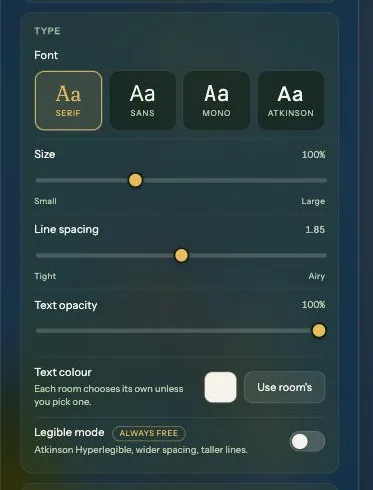
- Legible mode switches to Atkinson Hyperlegible with wider letter spacing and taller lines. It is free and stays free. If you have dyslexia or just find dense text tiring, try it before anything else.
- Text colour follows the room unless you pick one. Use room's puts it back.
- Auto-settle after a pause is here too: how long Inka waits before a sentence settles. 1 second by default. Enter always settles at once.
3. The room
Hub, Room. Animated rooms at the top, stills below. Press View all to see every one.
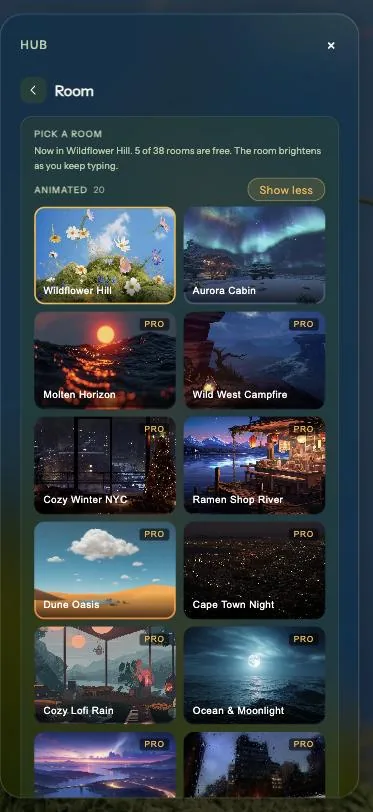
- The room brightens as you keep typing and dims a little when you stall. That is on purpose.
- Each room sets its own text colour and caret colour. Pick a room first, then adjust text.
- Pro: Your own background. Paste an image or YouTube link and it becomes the room. The last five stay in the panel.
4. Sound
Bottom left, the button next to Aa. Tap a sound to start it. Tap another and they play together. Each one gets its own volume slider.
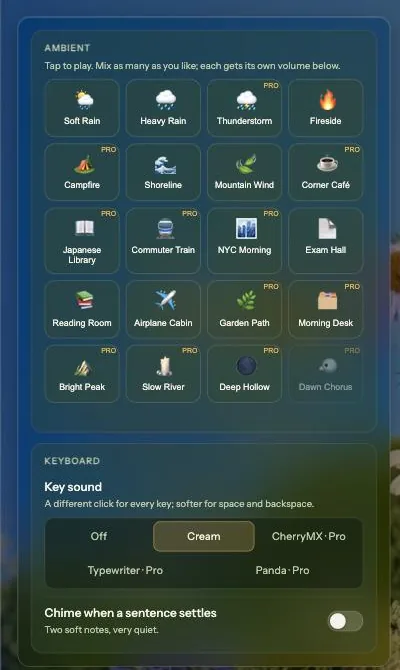
- A mix that works for most people: Soft Rain plus Fireside, rain a little louder.
- Key sound: Cream is free. Off is there too.
- Ambient volume follows your typing the same way the room does.
- Spotify is separate, under Hub, Music. Paste a playlist link. Ambient sounds turn down while a track plays.
Where the controls are
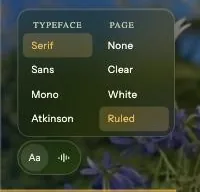
- Aa, bottom left: font and page.
- The sound button next to it: ambient mix, key sound, chime.
- Hub, bottom right (the four squares next to the gear), opens Room, Music, Text, Export, Widgets and Notes. The gear next to it is Settings. On a laptop it is a sidebar in three groups: Text, Room, Music, Study and Notes; then Goals, Stats, Pieces, Export and Widgets; then Account, Help, Feedback, What's new and Inka Pro. Look and Focus Filter sit in a small card at the foot. On a phone the same names are a list you tap into.
- Everything hides after a few seconds without input. Move the mouse and it comes back.
All of this is saved on your device and comes back next time. Rooms, sounds and text settings stay on each device; only your pieces sync when you sign in.