
Get your writing out.
Four ways, all free. Which one to use depends on where the words are going next.
Where it is
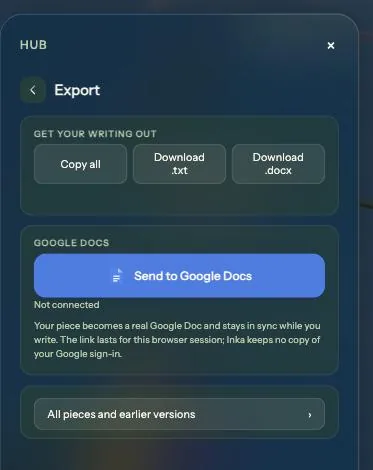
The four squares at the bottom right, next to the gear, open the Hub. Press Export. It exports the piece you have open.
Which one
- Pasting into a message, an email, Notion, anything
- Copy all. The whole piece goes on your clipboard as plain text, one paragraph per block.
- A file to keep
- Download .txt. Opens anywhere, forever.
- Word, Pages, or handing in an assignment
- Download .docx. A real Word document. It opens cleanly in Word, Pages and Google Docs. Plain paragraphs, no odd styles to strip out.
- Working on in Google Docs, or sharing a link
- Send to Google Docs. See below.
Files are named after the piece. A piece whose first words are "The kettle had been on for a while" downloads as The-kettle-had-been-on-for-a-while.docx.
Google Docs, step by step
- Hub, Export, Send to Google Docs.
- Google asks you to choose an account and allow Inka to create documents. Allow.
- A new Google Doc opens with your piece in it. The button now says Open in Google Docs.
- Keep writing in Inka. The doc updates every few seconds, from Inka to the doc, one way. Edits made in the doc do not come back.
- Done for now? Disconnect. The doc stays in your Drive.
- The connection lasts for this browser session. Next time, press the button again and it makes a fresh doc.
- Inka keeps no copy of your Google sign-in and never reads your Drive. It can only create and update documents it made.
- If Google's sign-in cannot load, Inka copies the piece and opens a blank doc for you to paste into.
Good to know
- Export is one piece at a time. Open a different piece under Pieces, then export again.
- Nothing is lost by exporting. The piece stays in Inka, and its Earlier versions stay too.
- The sentence you are in the middle of is included, unfinished as it is.
- Export works offline for copy, .txt and .docx. Google Docs needs a connection.
Stuck? writeinka@gmail.com. Back to all guides.